For business owners
Free invoice generator
Use the invoice generator to add your business, customer, line items, discount, tax and payments received, then download a PDF showing the balance due.
- Free to use
- No account needed
Your invoice
Download PDF$511.72Balance due in USD, by October 31, 2026
- Total
- $711.72
- Paid
- $200.00
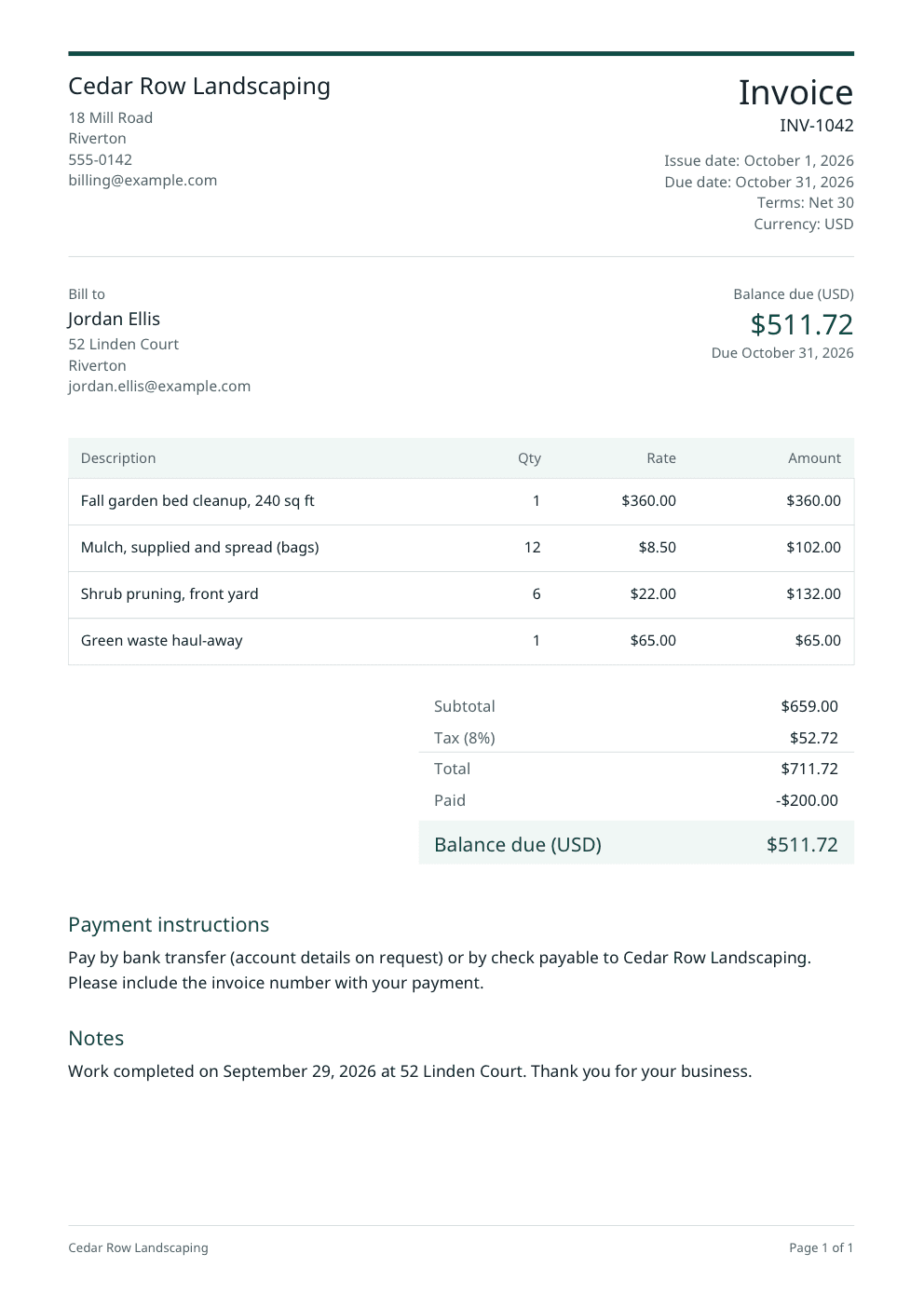
Check the customer details, tax and payment terms before you send it. This page does not send the invoice or record payments.
Invoice details
Use your real business and customer details.
Use it from an AI browser
This page has site tools: actions an AI agent can call directly, with no plugin or API key. The ChatGPT desktop app’s browser can use them where site tools are available, and so can Chrome with WebMCP turned on. The agent works on this page, with the same steps and limits as its buttons, so you can check the result before you use it.
Open doany.ai/tools/invoice-generator and create invoice BW-318 from Bright Window Cleaning to Marisol Vega for 14 exterior windows at $9 each and one screen repair at $35, on Net 15 terms with 6.5% tax and a $50 deposit already paid.
Site tools work only while this page is open. They never send messages, invoices or payments for you.
Prepare an invoice with the invoice generator
The invoice generator turns your own details, prices and terms into a PDF you send yourself. It calculates every total to the cent and keeps the work in your browser.
Add who is billing whom
Enter your business name, address and contact details, then the customer’s name and address. The invoice generator prints a tax or business ID exactly as you type it, so include the label your customers expect.
List the work and the amounts
Give each line a clear description, quantity and unit price in the currency you bill in, and list shipping or delivery as its own line. Add a percentage or fixed-amount discount and a tax rate if they apply, plus any deposit already received. The invoice generator works out the subtotal, total and balance due.
Set the dates and terms, then download
Use a unique invoice number and the issue date, then choose the payment terms you agreed: Due on receipt, Net 7, 15, 30 or 60, or a custom due date. Write how the customer can pay, update the invoice, check the preview and download the PDF. Sending it stays with you.
Fit the invoice to the job
The invoice generator handles finished jobs, deposits and clients abroad. What changes is which details you fill in.
A finished service job
What to change
List the visit, materials and any agreed extra work as separate lines. Put the date the work was done in Notes.
Before you use it
Make sure the prices match what the customer accepted in your estimate or quote.
A job with a deposit
What to change
Enter the full job on the lines and the deposit in Amount already paid. The invoice generator shows the total, the payment and the remaining balance due.
Before you use it
Do not also lower a line price by the deposit, or the customer is credited twice.
A client in another country
What to change
Choose the currency you agreed (search the list by name, code or country) and write payment instructions that work across borders.
Before you use it
Confirm which tax rules apply to cross-border work; the tool does not decide whether tax is due.
Check the invoice before you send it
- The invoice number has not been used on another invoice.
- The customer details and line items match the agreed work.
- Any tax rate is the one that applies to this sale; leave it blank if none applies.
- Amount already paid includes only money you have actually received.
- The payment terms, due date and payment instructions match what you agreed.
How the totals are calculated
Each line is quantity × unit price, rounded half up to the cent. A discount is a percentage of the subtotal or a fixed amount up to the subtotal, and tax is a percentage of the subtotal after the discount; percentages round half up to the cent. Balance due is the total minus the amount already paid. The invoice generator uses exact decimal arithmetic, so the preview, PDF and copied text always agree. It cannot tell which tax applies to your sale, so confirm the rate with your tax authority or adviser.
What an invoice usually needs
For UK businesses, GOV.UK lists a unique number, your business name, address and contact details, the customer’s name and address, a clear description of what you charge for, the supply date, the invoice date, the amounts, any VAT and the total owed. If you and your customer are both VAT registered, GOV.UK says you must use a VAT invoice, which needs more details, such as the tax point and the VAT rate for each item; the invoice generator has one tax rate per invoice and no tax point field. Rules differ between countries, so check the requirements where you trade.
Your invoice stays on your device
The invoice generator builds the preview and the PDF in your browser. It does not send the invoice, store customer details, connect to a payment provider or mark anything as paid.
Sources checked on October 6, 2026: GOV.UK: what an invoice must includeGOV.UK: information required on a VAT invoiceGOV.UK: payment deadline when none is agreedIRS: records that support gross receiptsopens in a new tab
Questions about this tool
What should an invoice include?
Most invoices show a unique invoice number, your business name and contact details, the customer’s name and address, the invoice date, a description of each item, the amounts and the total owed. GOV.UK also lists the supply date and any VAT for UK businesses. The invoice generator has a field for each of these except the supply date: put the date the work was done in Notes or the item description.
How should I number my invoices?
Give every invoice its own number and never reuse one. A simple sequence with a prefix works well, such as INV-1042 followed by INV-1043. The invoice generator prints the number you enter and uses it in the PDF file name. Add a customer’s purchase order number as the reference, printed under the invoice number.
What due date and payment terms should I use?
Use the terms you agreed with the customer. Choose Due on receipt or Net 7, 15, 30 or 60 and the invoice generator prints the terms and sets the due date: the issue date itself for Due on receipt, or 7, 15, 30 or 60 calendar days after it. Choose Custom date for any other date. For the UK, GOV.UK says that unless you agree a payment date, the customer must pay within 30 days of getting the invoice or the goods or service.
How do I show a deposit or part payment?
Enter the whole job on the line items and the money already received in Amount already paid. The invoice generator then shows the total, a Paid line and the balance due. The amount paid cannot be more than the total.
How do I bill hourly work or part quantities?
Enter the hours as the quantity, up to four decimal places, such as 2.5 for two and a half hours, and your hourly rate as the unit price. The invoice generator multiplies them and rounds each line half up to the cent. Materials sold by the bag or foot work the same way.
Which currencies can I use?
The invoice generator offers any of 44 currencies with two decimal places, from US dollars, euros and pounds to Indian rupees, Philippine pesos, Nigerian naira and South African rand; search the list by name, code or country. Nothing is converted between currencies: every price you enter is in the currency you choose, and the PDF prints its code next to the balance due. Currencies without cents, such as the Japanese yen and Korean won, are not offered.
What is the difference between an estimate and an invoice?
An estimate tells a customer what work is expected to cost before it starts. An invoice asks for payment for work done or goods supplied, with its own number, dates and balance due. Use an estimate to agree the price, then the invoice generator when you bill for it.
Is my invoice stored or sent anywhere?
No. The invoice generator builds the preview and the PDF in your browser. Nothing is sent, stored or tracked as paid, and your details are gone when you leave the page, so download the PDF or text to keep a copy. The IRS lists invoices among the records that support your gross receipts, so keep a copy of each one you issue.